# Checking Into Events/Proving Membership

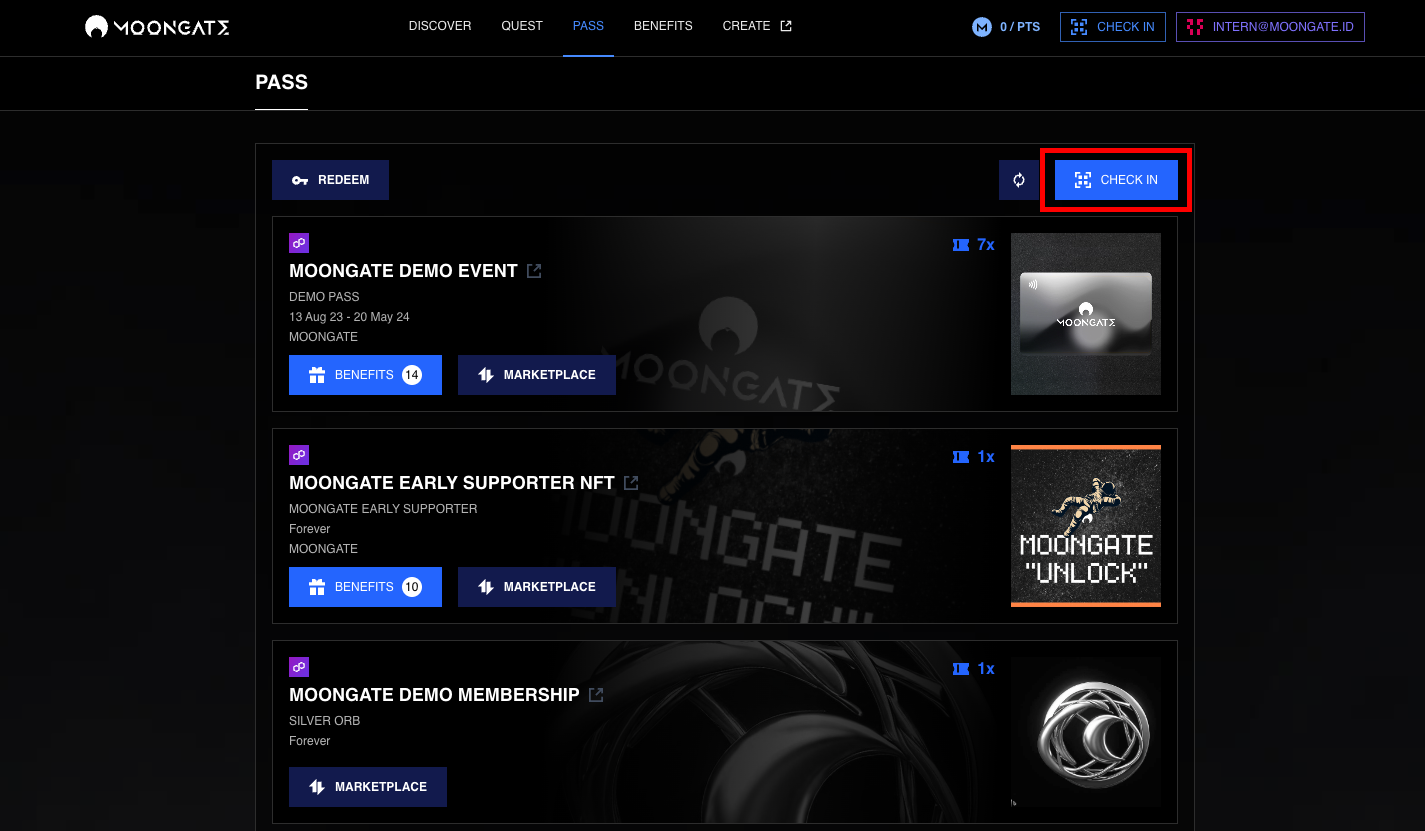
1. **Click 'Check in'**\
   \
   Open the ‘[Pass](https://app.moongate.id/)’ page on the Moongate portal and click ‘Check in’.<br>

   <figure><img src="https://3623901676-files.gitbook.io/~/files/v0/b/gitbook-x-prod.appspot.com/o/spaces%2FPs9WV9RUj2RXqMDzqNhJ%2Fuploads%2F61Cnh6Rjj7tiUQVxHODZ%2Fimage.png?alt=media&#x26;token=6b735c0d-9bb5-4e95-a4f6-01bcec7f8dea" alt=""><figcaption></figcaption></figure>
2. **Present your QR code**\
   \
   Simply present the pop-up QR code to the event/membership check-in staff to scan. This QR code will work for all of your events/memberships – no need to select anything!\ <br>

   <div align="left"><figure><img src="https://3623901676-files.gitbook.io/~/files/v0/b/gitbook-x-prod.appspot.com/o/spaces%2FPs9WV9RUj2RXqMDzqNhJ%2Fuploads%2FXyno40YaKcP0Ec6QNPcb%2Fimage.png?alt=media&#x26;token=856f5ec9-2f0b-42a5-a125-80ed099bd39f" alt="" width="501"><figcaption></figcaption></figure></div>

{% hint style="info" %}
You can use Apple Wallet or Google Wallet to save the QR code to your phone.
{% endhint %}

{% hint style="info" %}
You will also have received a confirmation email when you purchased your ticket/membership pass. This email contains a QR code for that ticket/membership pass that can also be used to check-in.<br>
{% endhint %}

<figure><img src="https://3623901676-files.gitbook.io/~/files/v0/b/gitbook-x-prod.appspot.com/o/spaces%2FPs9WV9RUj2RXqMDzqNhJ%2Fuploads%2FN9CCLa82npsvYez9AD16%2Fimage.png?alt=media&#x26;token=3a2ffb95-9162-431d-a853-b33767f8c753" alt=""><figcaption></figcaption></figure>