# Discount & Promo Codes

{% hint style="info" %}
The process of creating and implementing discounts and promo codes is identical for both tickets and memberships.
{% endhint %}

#### **Step 1: Sign into the** [**Moongate Merchant Portal**](https://portal.moongate.id)

[**https://portal.moongate.id/**](https://portal.moongate.id/)

#### Step 2: Navigate to the Target Event or Membership Page

#### Step 3: Navigate to the Discount & Codes Tab

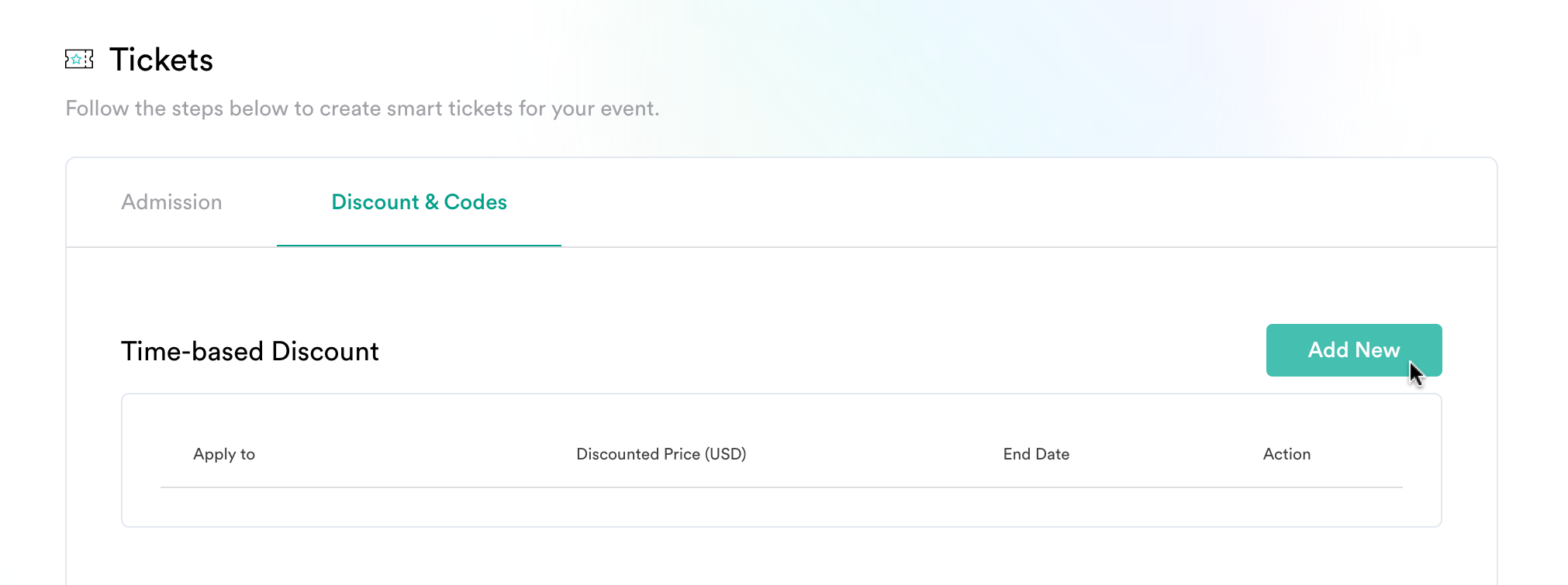
Go to the "③ Tickets" or "③ Tiers" page within the chosen event/membership page respectively, and then click on the "Discount & Codes" tab. From here you can add new time-based discounts and promo codes.

<figure><img src="https://1729180990-files.gitbook.io/~/files/v0/b/gitbook-x-prod.appspot.com/o/spaces%2FArGy7vQWZPA9Z8R1a6dv%2Fuploads%2FdsimBYtM88eDiUnZ02pF%2Fimage.png?alt=media&#x26;token=f31d3cd2-590f-4231-96a5-4942a9180803" alt=""><figcaption></figcaption></figure>

#### Step 4: Add a Time-based Discount/Promo Code

A time-based discount enables **all** users to purchase tickets/membership at a discounted price for a limited time only.&#x20;

A promo code enables **only users with the code** to purchase tickets/memberships at a discounted price for an unspecified period of time.

{% tabs %}
{% tab title="Time-based Discount" %}
**Step 1: Click "Add New"**

<figure><img src="https://1729180990-files.gitbook.io/~/files/v0/b/gitbook-x-prod.appspot.com/o/spaces%2FArGy7vQWZPA9Z8R1a6dv%2Fuploads%2FcK3zKpbw21YmuSyES7fa%2FScreenshot%202023-12-14%20at%204.50.24%20PM.png?alt=media&#x26;token=f8d6e528-d7cd-4187-a944-b7566c707bdb" alt=""><figcaption></figcaption></figure>

**Step 2: Select a Ticket Type/Membership Tier to Discount**

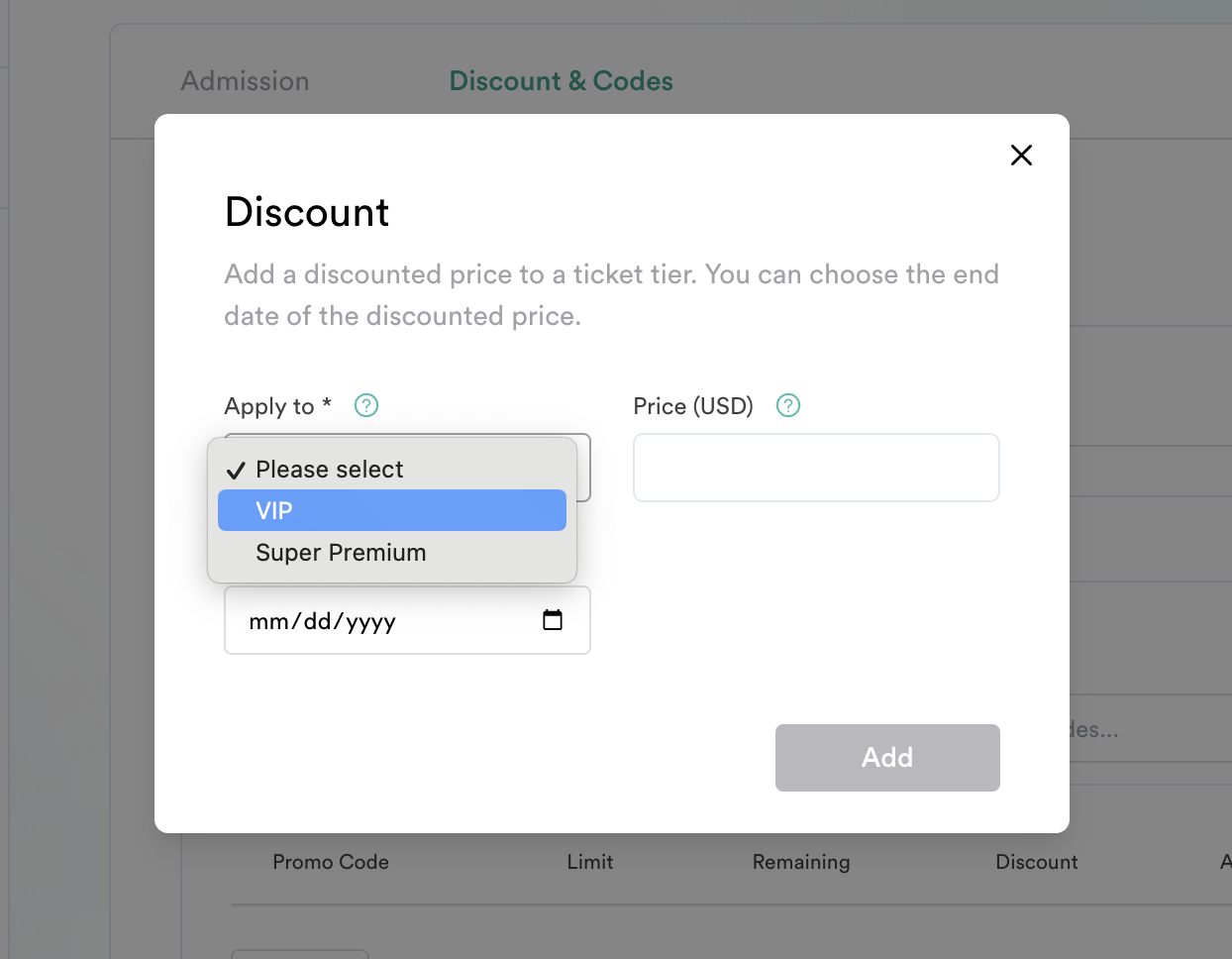
In the following window, select the ticket type/membership tier to apply a discount to.

<div align="left"><figure><img src="https://1729180990-files.gitbook.io/~/files/v0/b/gitbook-x-prod.appspot.com/o/spaces%2FArGy7vQWZPA9Z8R1a6dv%2Fuploads%2FwxdYwvZk6s22iHvB6i62%2FScreenshot%202023-12-14%20at%204.56.25%20PM.png?alt=media&#x26;token=a4fbfc3c-3430-4f5a-8a5d-0d07cd68aa26" alt="" width="563"><figcaption></figcaption></figure></div>

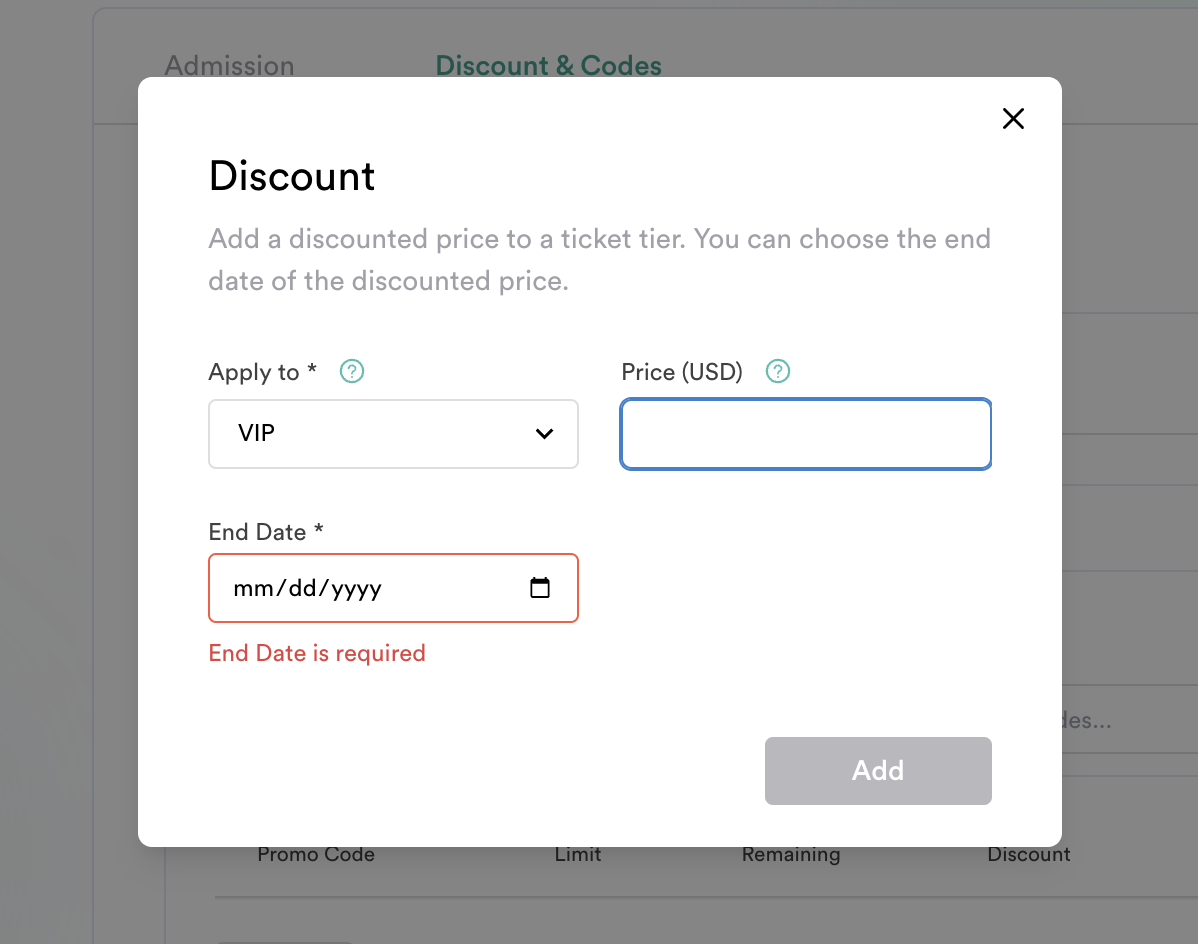
**Step 3: Set the Discounted Price**

<div align="left"><figure><img src="https://1729180990-files.gitbook.io/~/files/v0/b/gitbook-x-prod.appspot.com/o/spaces%2FArGy7vQWZPA9Z8R1a6dv%2Fuploads%2FnQQFCVM270e17b1eIyIG%2FScreenshot%202023-12-14%20at%204.59.00%20PM.png?alt=media&#x26;token=8c61754e-3c36-420d-bccf-29a89d729056" alt="" width="563"><figcaption></figcaption></figure></div>

**Step 4: Set the Discount End Date**

Click the calendar icon in the "End Date" field to open the date picker. Select a date for the discount period to end. The discount period will run from the current date to the selected date.

<div align="left"><figure><img src="https://1729180990-files.gitbook.io/~/files/v0/b/gitbook-x-prod.appspot.com/o/spaces%2FArGy7vQWZPA9Z8R1a6dv%2Fuploads%2FqtTkG3ffeHjtEyDF52JE%2FScreenshot%202023-12-14%20at%204.59.57%20PM.png?alt=media&#x26;token=8c8fcc3b-927c-4cd4-9b81-c469bc6f565c" alt="" width="563"><figcaption><p>Click “Add” when complete. Your discount period is now in effect until the selected date.</p></figcaption></figure></div>

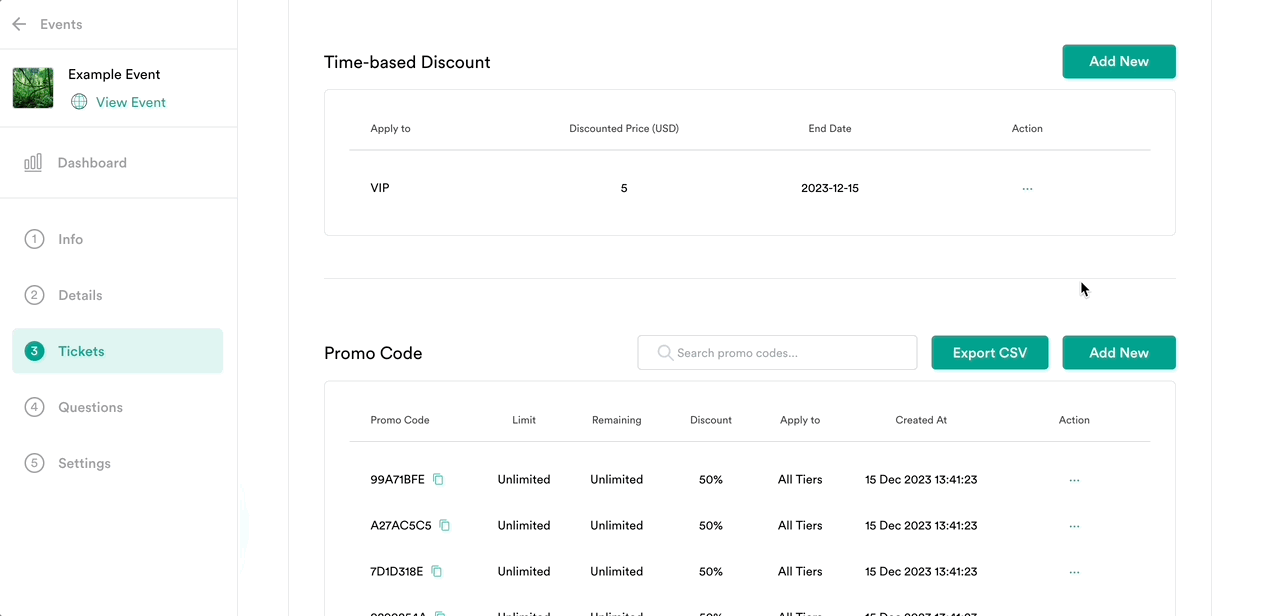
#### **Step 5:** Prematurely end discount period (optional)

Click "Add" to save. Your discount period is now in effect until the selected date.

<div align="center"><figure><img src="https://1729180990-files.gitbook.io/~/files/v0/b/gitbook-x-prod.appspot.com/o/spaces%2FArGy7vQWZPA9Z8R1a6dv%2Fuploads%2F1BGqeAoz0fvW1SKhHd8S%2Fimage.png?alt=media&#x26;token=975d6408-bedf-474c-8143-8439aa771caa" alt="" width="563"><figcaption></figcaption></figure></div>

The promotional period can be cut short by deleting the discount from the ticket type/membership tier. From the Discount & Codes Tab, click the action button for the target time-based discount, “Edit”, and then “Delete” on the following window.
{% endtab %}

{% tab title="Promo Code" %}
**Step 1: Click "Add New"**

<figure><img src="https://1729180990-files.gitbook.io/~/files/v0/b/gitbook-x-prod.appspot.com/o/spaces%2FArGy7vQWZPA9Z8R1a6dv%2Fuploads%2Fx4jVuFwURxSMOdsCzoiW%2FScreenshot%202023-12-14%20at%205.04.41%20PM.png?alt=media&#x26;token=3d9ff1cb-2f06-4f70-8bbc-f6490ab23a10" alt=""><figcaption></figcaption></figure>

**Step 2: Select a Ticket Type/Membership Tier to Discount**

In the following window, select the ticket type/membership tier to apply a discount to.

<div align="left"><figure><img src="https://1729180990-files.gitbook.io/~/files/v0/b/gitbook-x-prod.appspot.com/o/spaces%2FArGy7vQWZPA9Z8R1a6dv%2Fuploads%2FUELHs7fsrtuC3LVkZhLH%2FScreenshot%202023-12-14%20at%205.08.07%20PM.png?alt=media&#x26;token=ca9482ef-389d-47a3-991d-dca2bdbf46d8" alt="" width="563"><figcaption></figcaption></figure></div>

#### **Step 3:** Enter a discount percentage

<div align="left"><figure><img src="https://1729180990-files.gitbook.io/~/files/v0/b/gitbook-x-prod.appspot.com/o/spaces%2FArGy7vQWZPA9Z8R1a6dv%2Fuploads%2FMA8MN0CRdrrB6RnDoVgW%2FScreenshot%202023-12-14%20at%205.10.29%20PM.png?alt=media&#x26;token=878bafb4-40cf-4b8f-b04c-56a383966f66" alt="" width="563"><figcaption></figcaption></figure></div>

**Step 4: Manually generate or bulk generate promo codes**

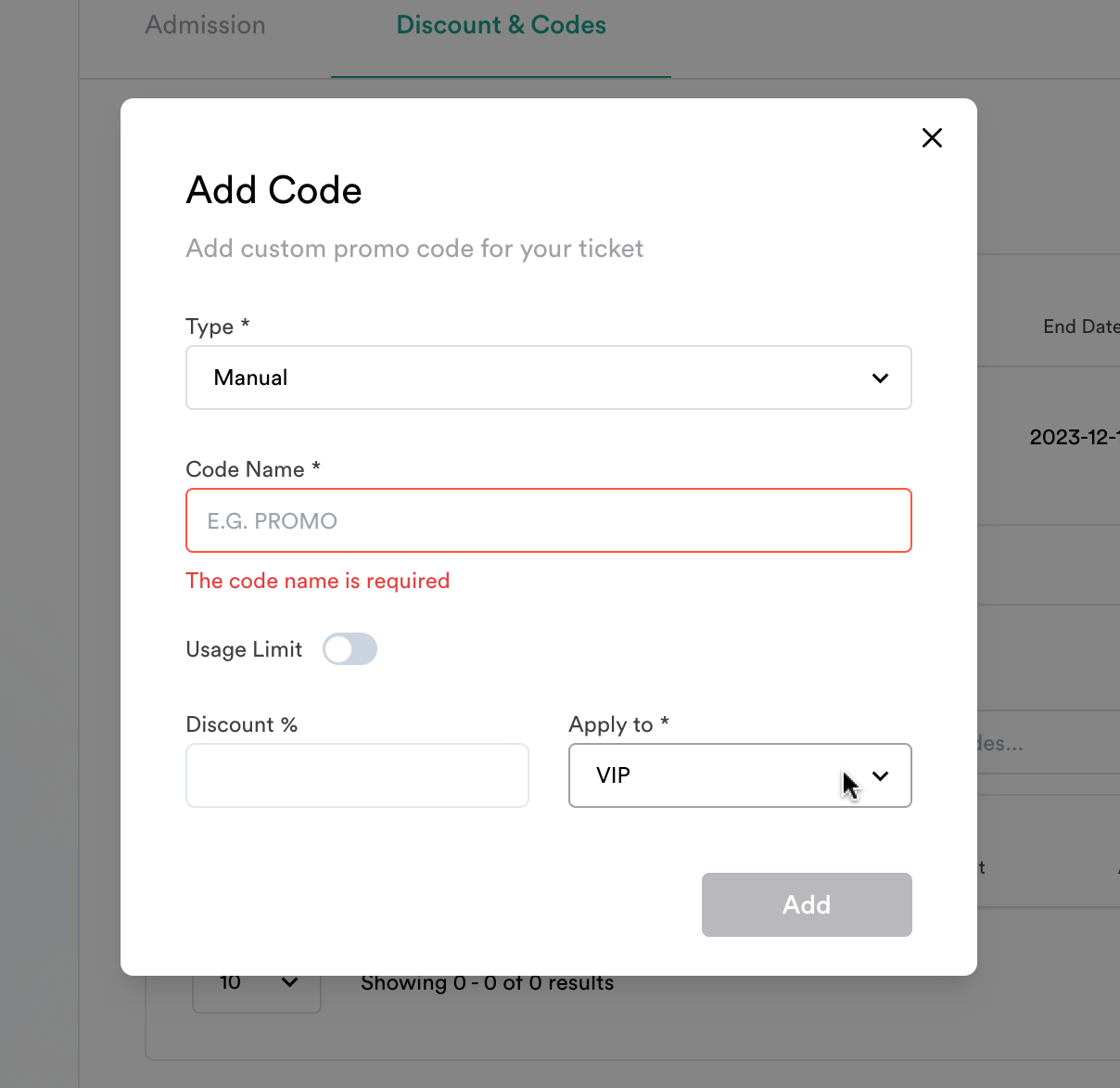
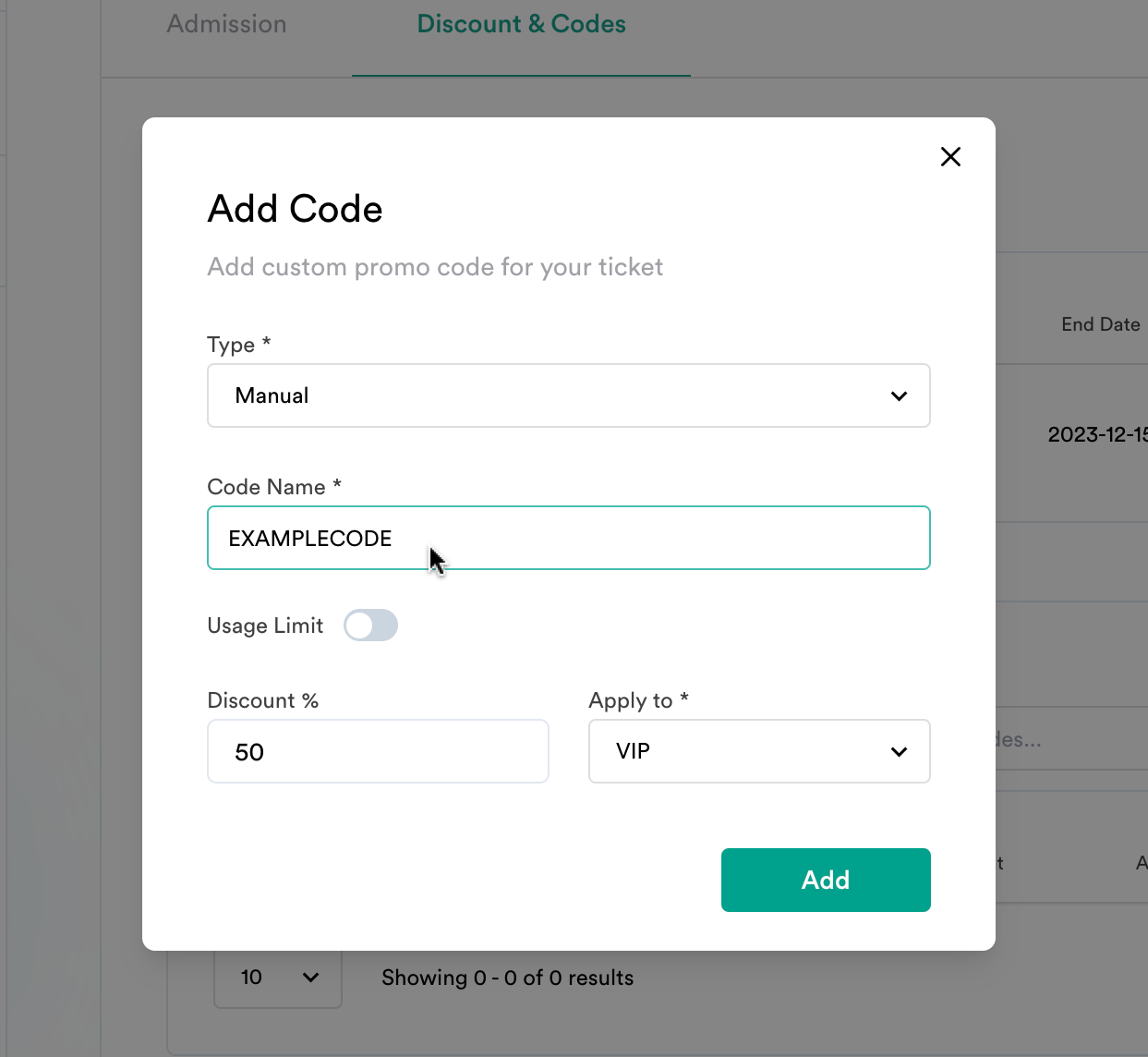
If you are adding a small number of codes or your campaign requires a specific promotional code, select “Manual.” Otherwise, select “Bulk Generate” to automatically generate codes.

* **Manual**

Enter the desired promo code. If applicable, add a maximum number of times that the code can be used by clicking the “Usage Limit” toggle and entering the quantity. Click “Add” when complete. The promo code is now activated.

<div align="left"><figure><img src="https://1729180990-files.gitbook.io/~/files/v0/b/gitbook-x-prod.appspot.com/o/spaces%2FArGy7vQWZPA9Z8R1a6dv%2Fuploads%2FMTgltuETBzkIPnAfn1IS%2FScreenshot%202023-12-14%20at%205.15.30%20PM.png?alt=media&#x26;token=c87bf1ab-7e83-4133-a161-2f42d114674a" alt="" width="563"><figcaption></figcaption></figure></div>

* **Bulk Generate**

Enter the desired quantity of promo codes to be randomly generated. If applicable, add a maximum number of times that each code can be used by clicking the "Usage Limit" toggle and entering the quantity. Click "Add" when complete. The promo code is now activated.

<div align="left"><figure><img src="https://1729180990-files.gitbook.io/~/files/v0/b/gitbook-x-prod.appspot.com/o/spaces%2FArGy7vQWZPA9Z8R1a6dv%2Fuploads%2FwxWh3feETcIzs9ndktb0%2Fimage.png?alt=media&#x26;token=f454e87b-3c95-4c4d-a6e1-db1821de72ed" alt="" width="563"><figcaption></figcaption></figure></div>

**Step 5: Delete promo codes**

From the Discount & Codes Tab, click the action button for the target discount code, “Delete,” and then “Confirm” on the following window.

<div align="left"><figure><img src="https://1729180990-files.gitbook.io/~/files/v0/b/gitbook-x-prod.appspot.com/o/spaces%2FArGy7vQWZPA9Z8R1a6dv%2Fuploads%2Fqzlwn3cp8jJI6eW3hL1a%2Fimage.png?alt=media&#x26;token=047c0bbd-8ded-4e6c-8289-d438bb152d22" alt="" width="563"><figcaption></figcaption></figure></div>

**Step 6: Create a direct discount code link (optional)**

Customers can be sent directly to the checkout page with a discount code already applied to their cart. To do so, simply append `/checkout?code=(your-discount-code)` to the back of your event’s URL, where `(your-discount-code)` is a valid and currently active discount code.

<div align="left"><figure><img src="https://1729180990-files.gitbook.io/~/files/v0/b/gitbook-x-prod.appspot.com/o/spaces%2FArGy7vQWZPA9Z8R1a6dv%2Fuploads%2FtRiYw3olLORJVeygUY62%2Fimage.png?alt=media&#x26;token=976086c2-8253-4037-a9ba-eaf76129ebc7" alt="" width="563"><figcaption><p>An example URL would be formatted as follows: <a href="https://app.moongate.id/events/moongatedemo/checkout?code=placeholder-code">https://app.moongate.id/events/moongatedemo/checkout?code=placeholder-code</a>.</p></figcaption></figure></div>
{% endtab %}
{% endtabs %}