# Data Reports

> **Download Sales, Attendance & Email Sent Data**

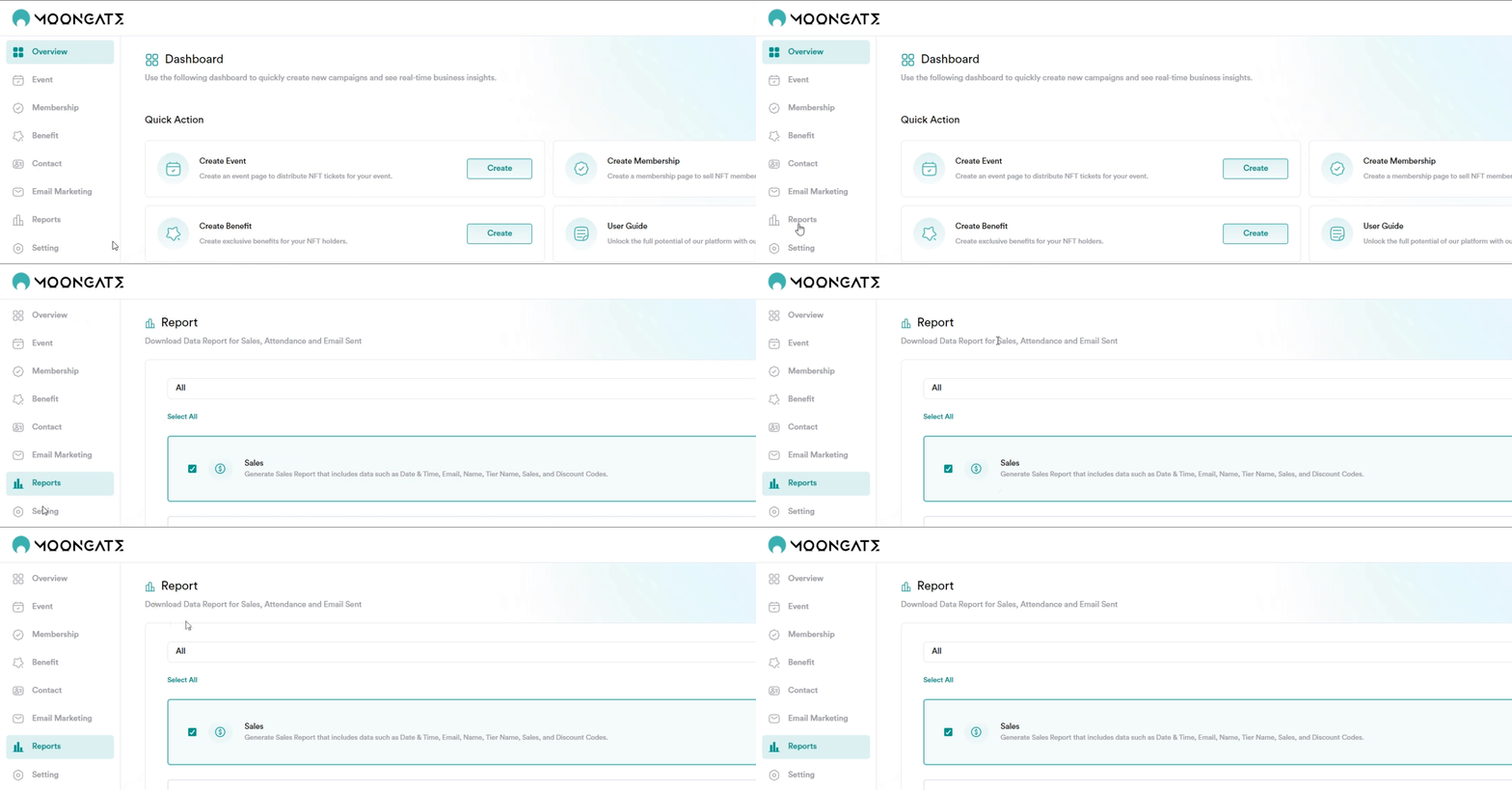
#### Step 1: Navigate to the 'Reports' Panel

<figure><img src="https://mintlify.s3.us-west-1.amazonaws.com/moongate-85/images/customer-insights/sales-attendance-data/report%20panel.gif" alt=""><figcaption></figcaption></figure>

#### Step 2: Select Event

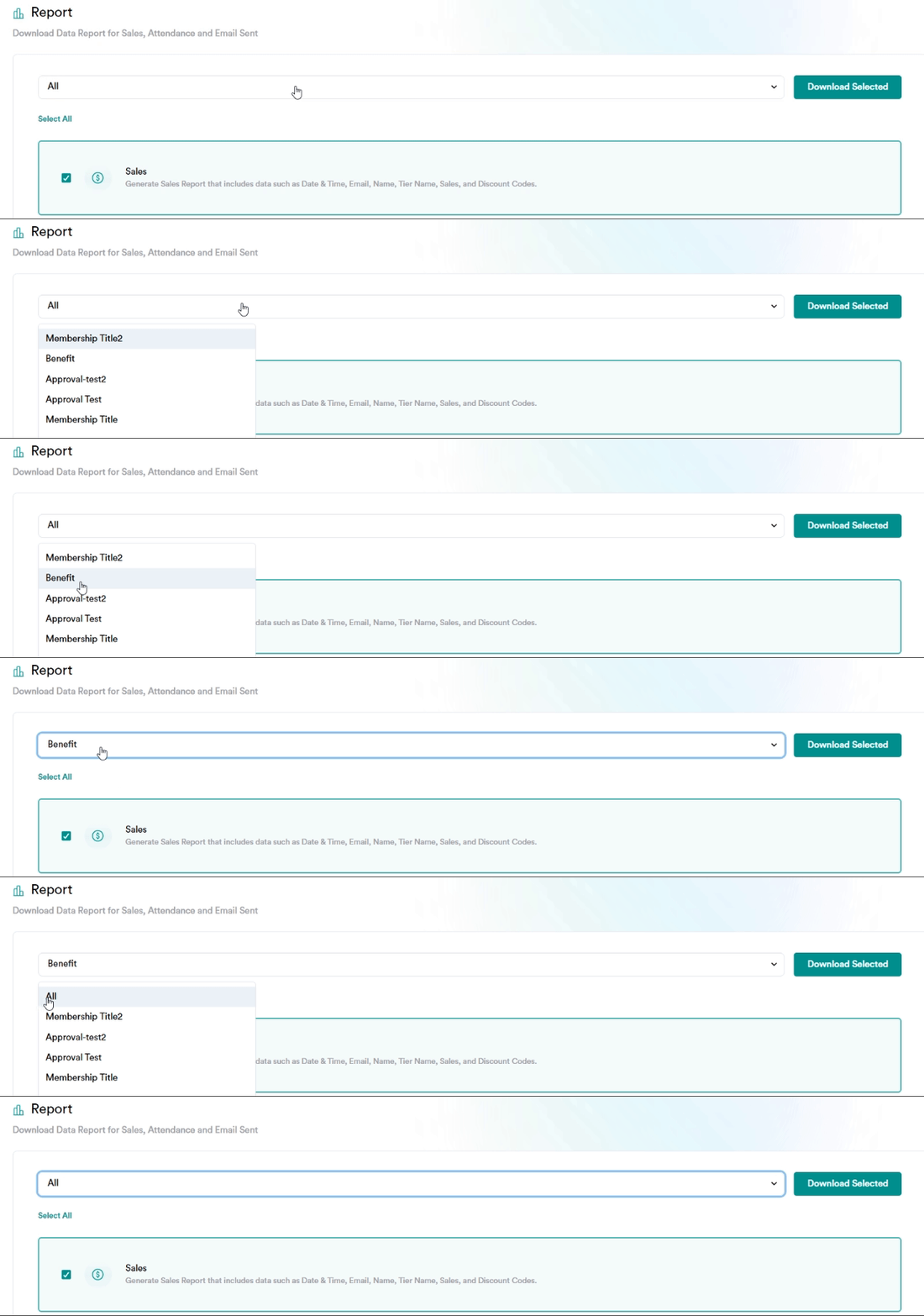
Click the dropdown menu under the ‘All’ label to select a specific event or choose ‘All Events’ to include all available events.

<figure><img src="https://mintlify.s3.us-west-1.amazonaws.com/moongate-85/images/customer-insights/sales-attendance-data/selecting%20event.gif" alt=""><figcaption></figcaption></figure>

#### Step 3: Select Report Type

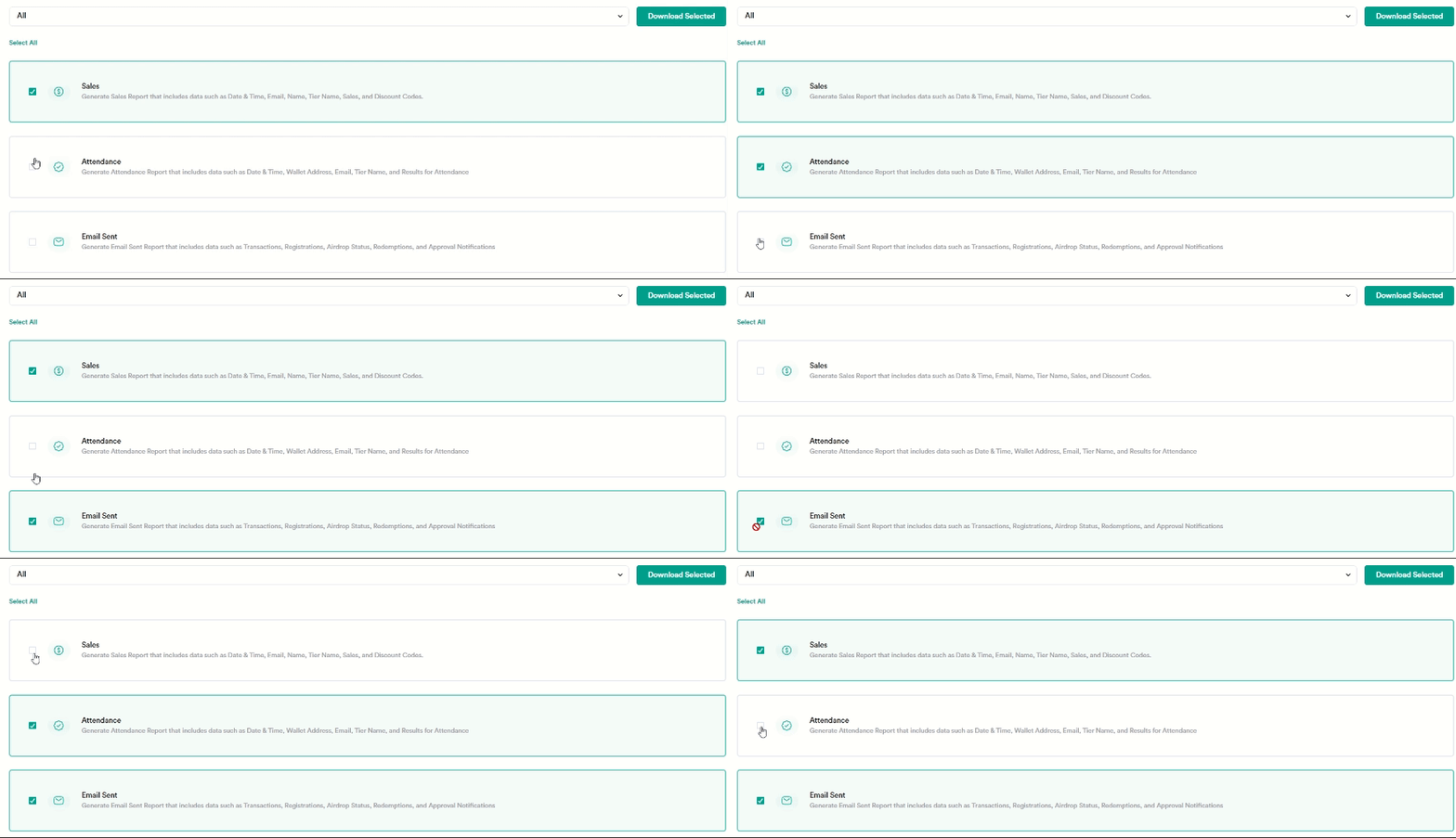
Choose the type of report you want to generate. You can select one or multiple options from Sales, Attendance, and Email Sent by checking the corresponding boxes.

<figure><img src="https://mintlify.s3.us-west-1.amazonaws.com/moongate-85/images/customer-insights/sales-attendance-data/selecting%20report%20type.gif" alt=""><figcaption></figcaption></figure>

#### Step 4: Download the Report

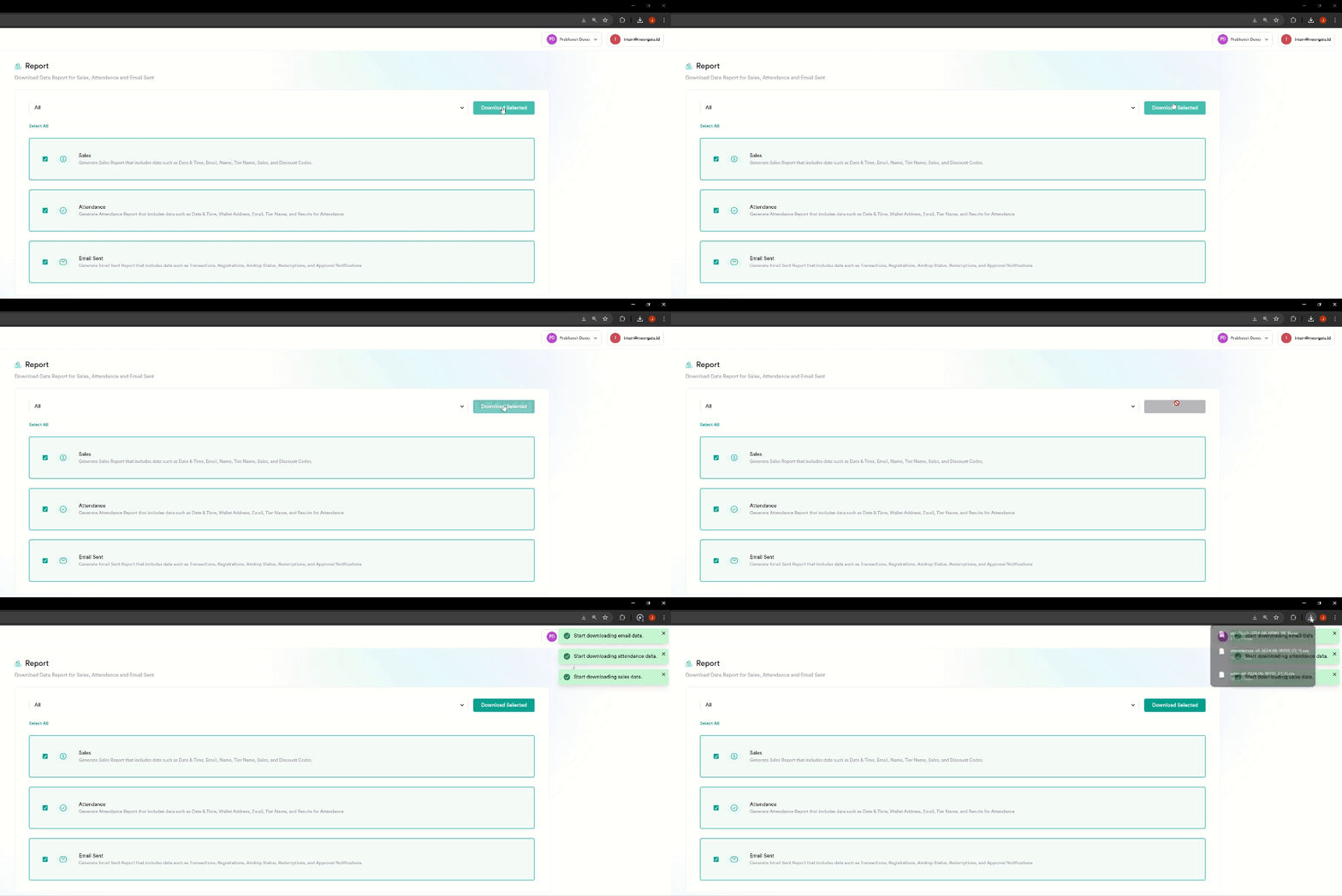
Once you have selected the desired event and report type(s), click the ‘Download Selected’ button to download the reports in CSV format for data analytics.
<figure><img src="https://mintlify.s3.us-west-1.amazonaws.com/moongate-85/images/customer-insights/sales-attendance-data/download%20reports.gif" alt=""><figcaption></figcaption></figure>